insynout

  • Subscribe to our RSS feed.
  • Twitter
  • StumbleUpon
  • Reddit
  • Facebook
  • Digg
Showing posts with label Windows. Show all posts

Wednesday, 25 January 2017

Looking for a perfect IDM Alternative for Windows? EagleGet Downloader Might be just for you

Posted on January 25, 2017 by anuj
Best IDM alternatives for windpws 10, alternatives for idm for windows 10, idm alternatives for mac, idm alternatives for fast download

Well everyone knows that Internet Download Manager (IDM) is an awesome download manager tool. It breaks the files into several chunks of data (File Segmentation) and downloads them into several pieces (Multipart Downloading) to accelerate the downloads.Unlike other download managers and accelerators, Internet Download Manager segments downloaded files dynamically during download process and reuse available connections without additional connect and login stages to achieve best acceleration performance.

Best IDM alternatives for windpws 10, alternatives for idm for windows 10, idm alternatives for mac, idm alternatives for fast download

It supports browser integrations, proxy servers, video and audio codecs, FTP server downloads.Other features include multilingual support, zip preview, download categories, scheduler pro, sounds on different events, HTTPS support, queue processor, HTML help and tutorial, enhanced virus protection on download completion, progressive downloading with quotas (useful for connections that use some kind of fair access policy or FAP like Direcway, Direct PC, Hughes, etc.), built-in download accelerator, and many others.


They also have amazing support center, but you have to buy the software for about ~12 $ for a year's license. So. for the folks who don't want to pay for their service, there's an alternative to it which is free and has almost same features of IDM. EagleGet Download Manager !!!

Best IDM alternatives for windpws 10, alternatives for idm for windows 10, idm alternatives for mac, idm alternatives for fast download

EagleGet is an awesome tool that I personally use to download my files. It has much simpler and direct UI unlike IDM, is stable and supports fast downloading. It doesn't support file segmentation and multipart downloading like IDM does but it has download acceleration and fast downloading.

Its features:  

Best IDM alternatives for windpws 10, alternatives for idm for windows 10, idm alternatives for mac, idm alternatives for fast download

EagleGet has an attractive and modern interface, easy to use and is fully configurable and comes with extra tools such as Media Grabber and speed limiter and the best thing is that it's all for free !! Its tried, tested and recommended by almost all software sites and professionals. 

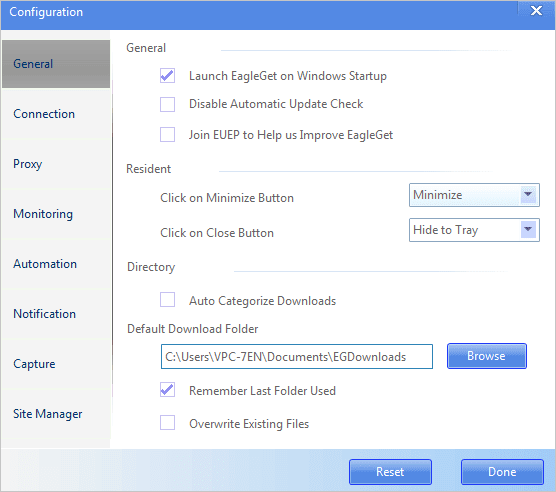
Few Screenshots: 

Best IDM alternatives for windows 10, alternatives for idm for windows 10, idm alternatives for mac, idm alternatives for fast download

Best IDM alternatives for windpws 10, alternatives for idm for windows 10, idm alternatives for mac, idm alternatives for fast download

Best IDM alternatives for windpws 10, alternatives for idm for windows 10, idm alternatives for mac, idm alternatives for fast download

Best IDM alternatives for windpws 10, alternatives for idm for windows 10, idm alternatives for mac, idm alternatives for fast download

Best IDM alternatives for windpws 10, alternatives for idm for windows 10, idm alternatives for mac, idm alternatives for fast download

Best IDM alternatives for windpws 10, alternatives for idm for windows 10, idm alternatives for mac, idm alternatives for fast download

Best IDM alternatives for windows 10, alternatives for idm for windows 10, idm alternatives for mac, idm alternatives for fast download

Best IDM alternatives for windpws 10, alternatives for idm for windows 10, idm alternatives for mac, idm alternatives for fast download

Best IDM alternatives for windpws 10, alternatives for idm for windows 10, idm alternatives for mac, idm alternatives for fast download

Download EagleGet for free (direct link): here

For portable version click here

Visit the website and please do check out the awesome download manager.

Hope you find this article useful. For more such articles, more suggestions and any kind of help, comment down below.
Read More
Posted in Windows | No comments

Saturday, 31 December 2016

How to Manually Download and Install Windows 10 Updates

Posted on December 31, 2016 by anuj

Cannot install Windows 10 update

When a new windows update doesn’t show up or whether you have a limited internet connection or you prefer to take the responsibility of taking care of your Windows machine and want to manually update..well you've come to the right place.

The article focuses on how to install Windows updates manually.

Microsoft makes available updates for Windows 10 on the regular basis to patch any system software error, to patch a security hole or to improve the functionality of the operating system.

These updates are rolled out to protect users from online phishing attacks, prevent loss of data from a system crash and to add new definitions and functionality improvements. Even now that updates are mandatory to keep the Windows devices up to date, sometimes updates may not appear for download on the computer for a long period of time for many reasons.

update windows manually

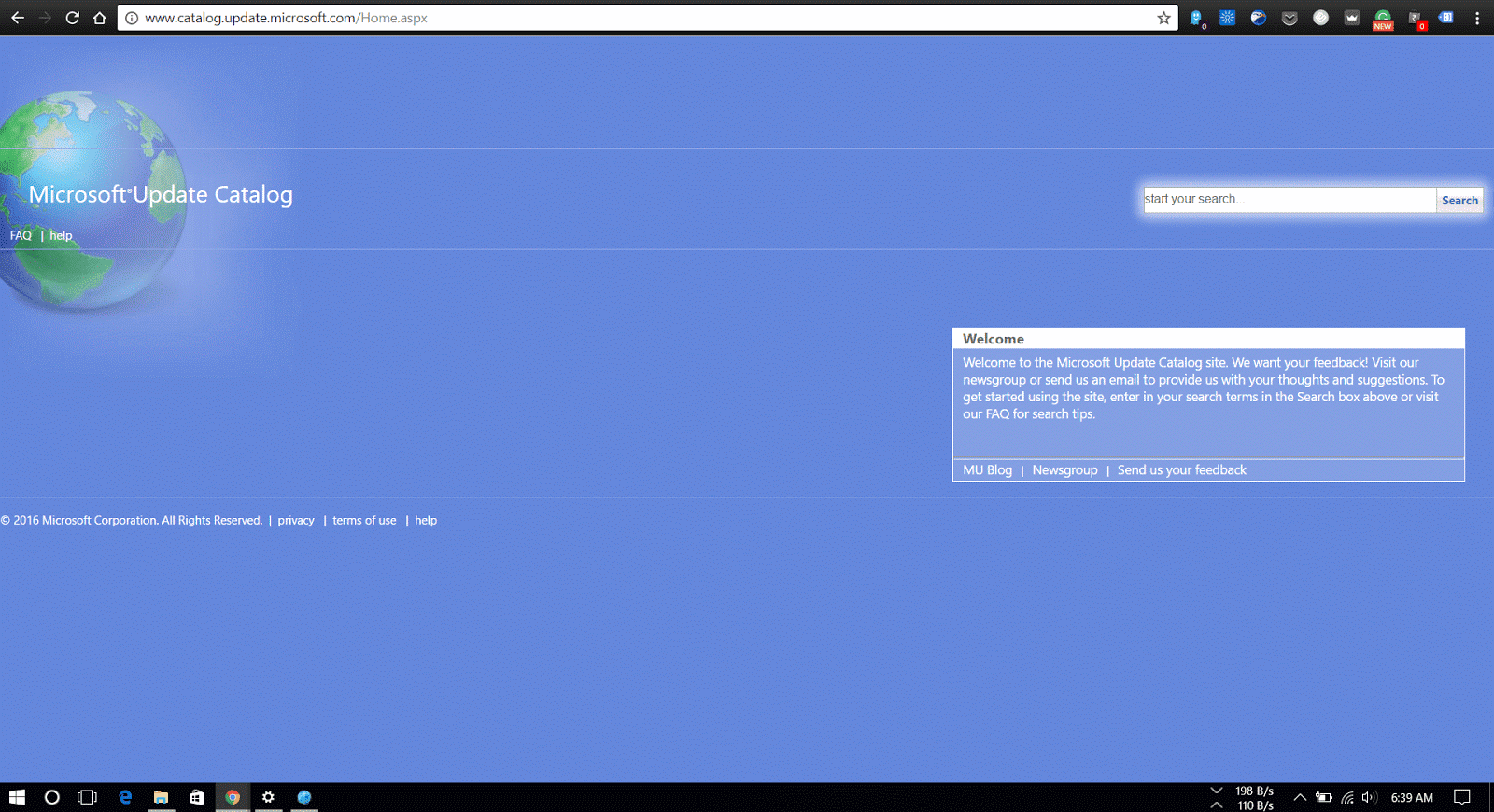
Windows Update is the preferred method to get updates from Microsoft, users can also manually download the updates as they are available through the “Microsoft Update Catalog” website.

This website mainly serves as a resource for IT administrators who need to test updates before pushing them to the devices in the network, you can use the Update Catalog website to quickly download a new update if it’s not showing for you in Windows Update as an alternative option.

How to download cumulative updates


Note that the Microsoft Catalog Website doesn’t list anything, instead it’s a search page where the user must know exactly which page to download and on which type of system the update is to be installed.

What is KB number

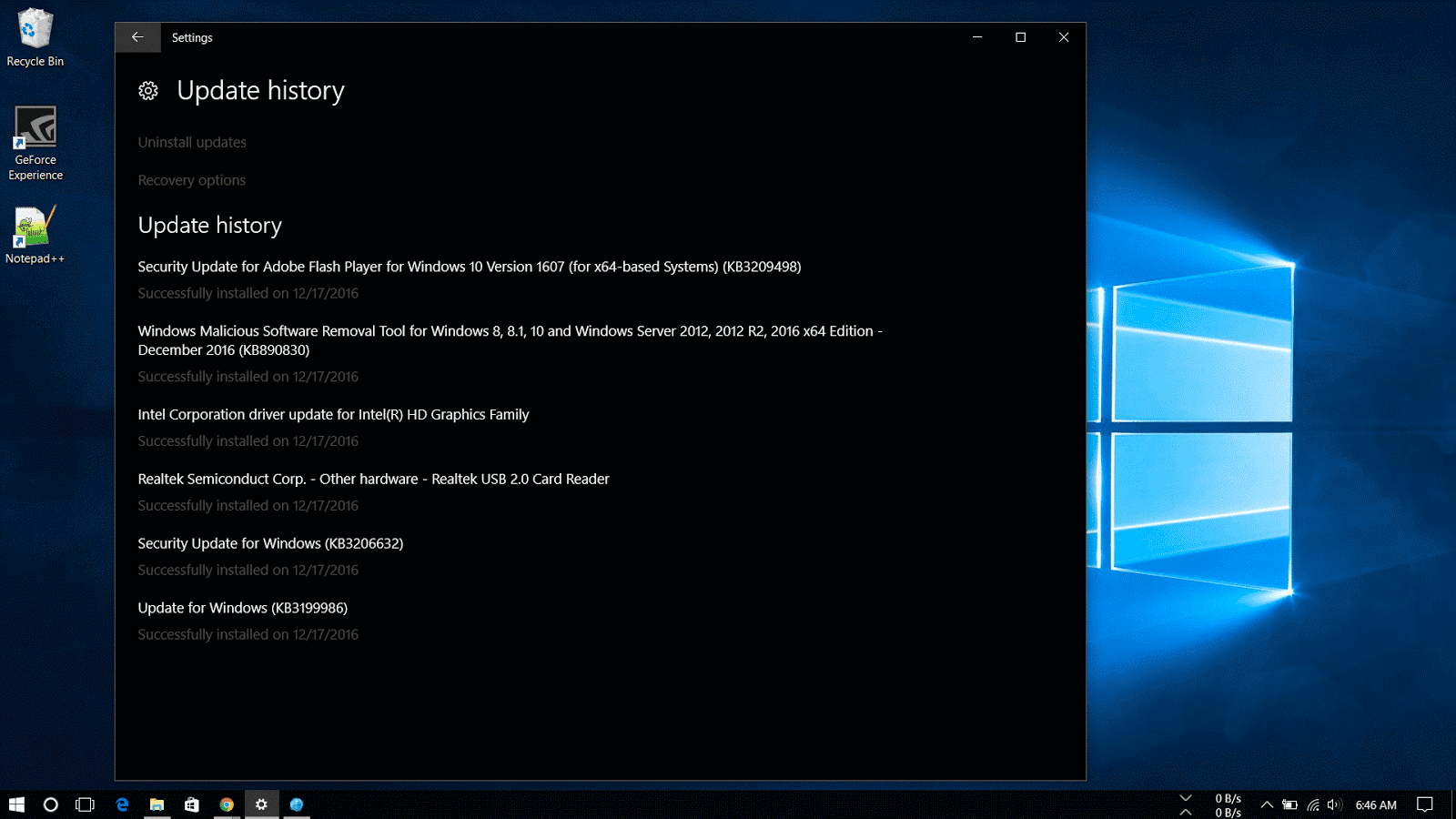
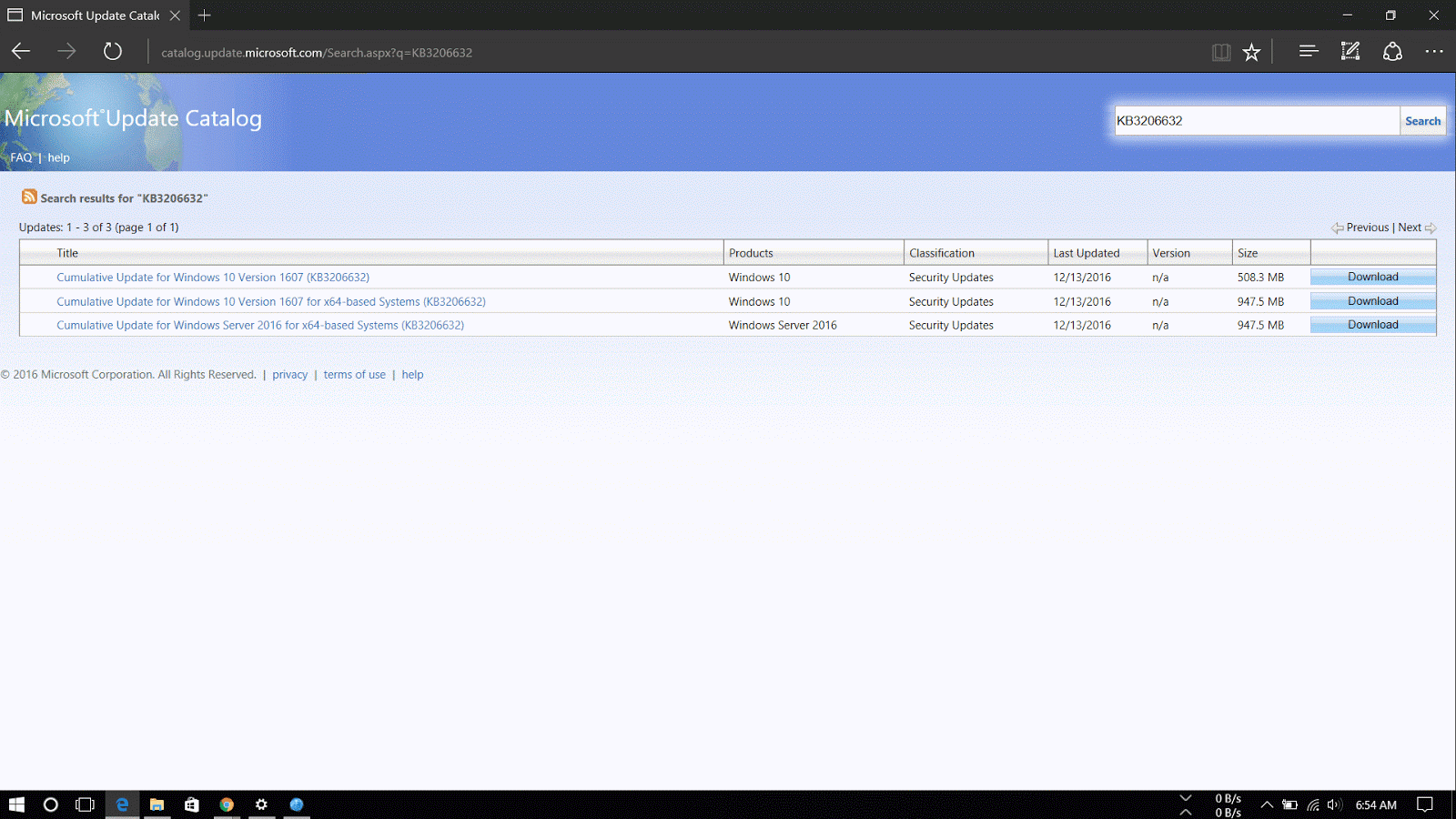
The easiest way to find an update is to know it’s Knowledge Base reference number. (The KBxxxxxx number which you might see when you’re installing updates in the Windows Update). For example, on December 13th, Microsoft released Windows 10 build 14393.576, which Knowledge Base reference was KB3206632. You can find references on the Windows 10 Update History Website.

Then do the following steps:

1. Visit the Microsoft Update Catalog website

2. Do a search for the update using the KB number for the update you want. For example, KB3206632.                    

kb number

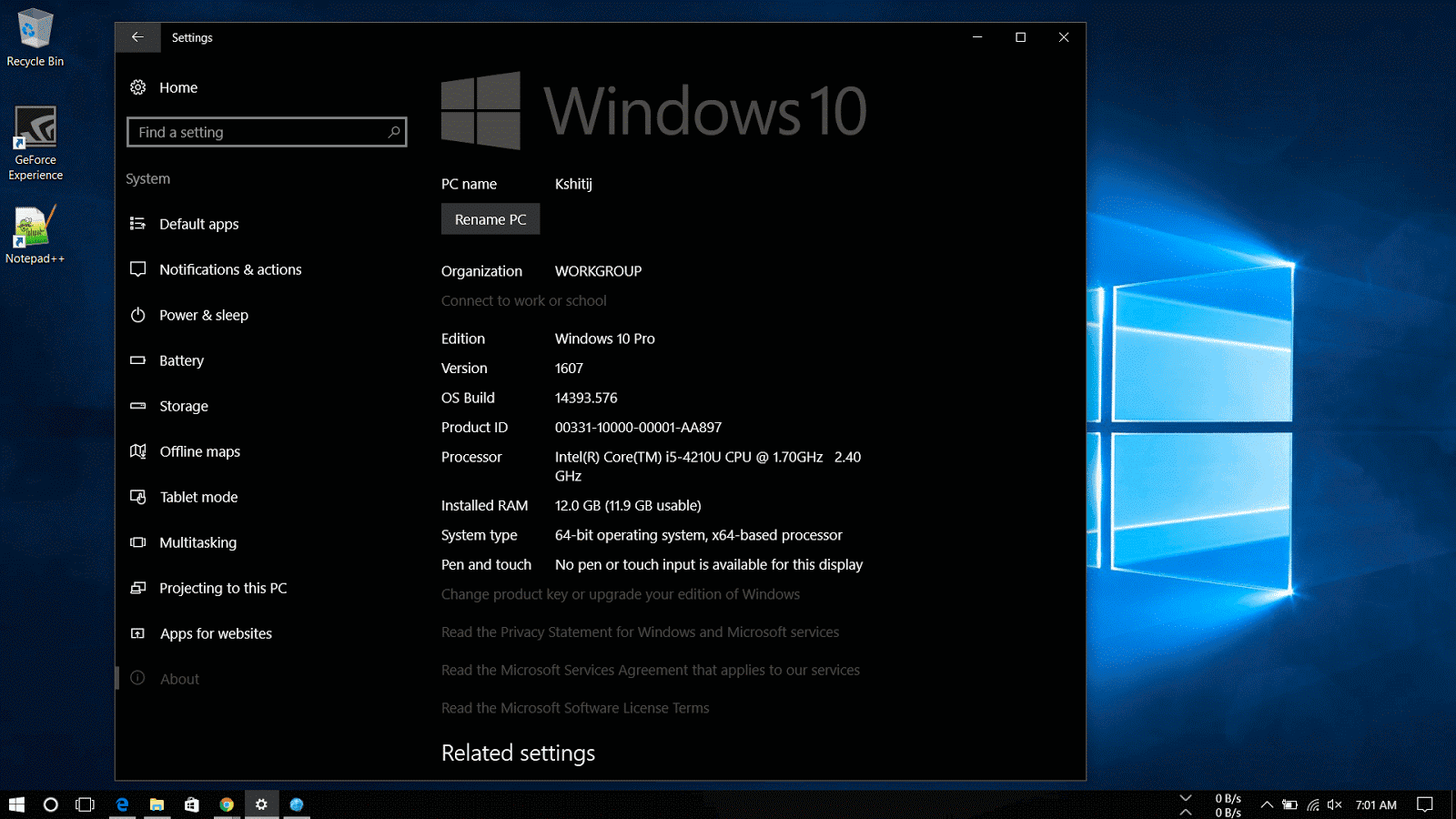
3. Now download the 32-bit or 64-bit version of the update. If you are unaware of the system type, go through the following steps:

       1. Open Settings.

      2.Click on System.

      3.Click on About.

       4.See the System type.

32-bit or 64-bit windows 10

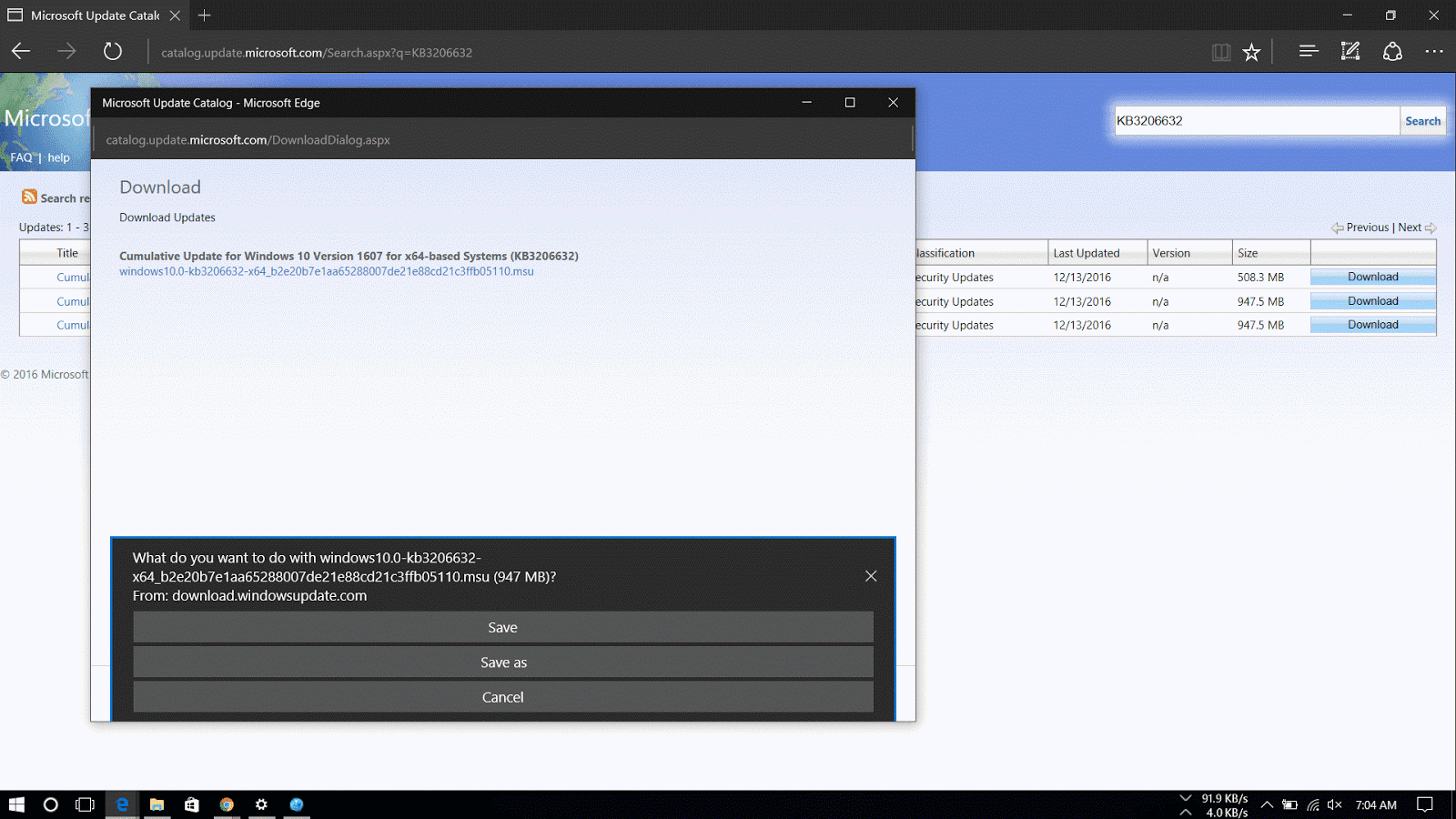
4. A new window will appear with a direct download link, click on it to download the .msu file.

Manually download windows 10 updates

Now that you've downloaded the file, for steps on how to install the updates manually read my article here.
Read More
Posted in How To, Windows | No comments

Monday, 19 December 2016

How To Install Cumulative Updates of Windows 10 Manually

Posted on December 19, 2016 by anuj
If you have downloaded the Microsoft Update Manually, follow the steps below to install or follow this guide on how to download the updates manually.

You can simply double-click the update .msu file to install an update on Windows 10 and restart to finish update or you may prefer to manually include options such as not to restart after installing the update, which can be done by using the command prompt.

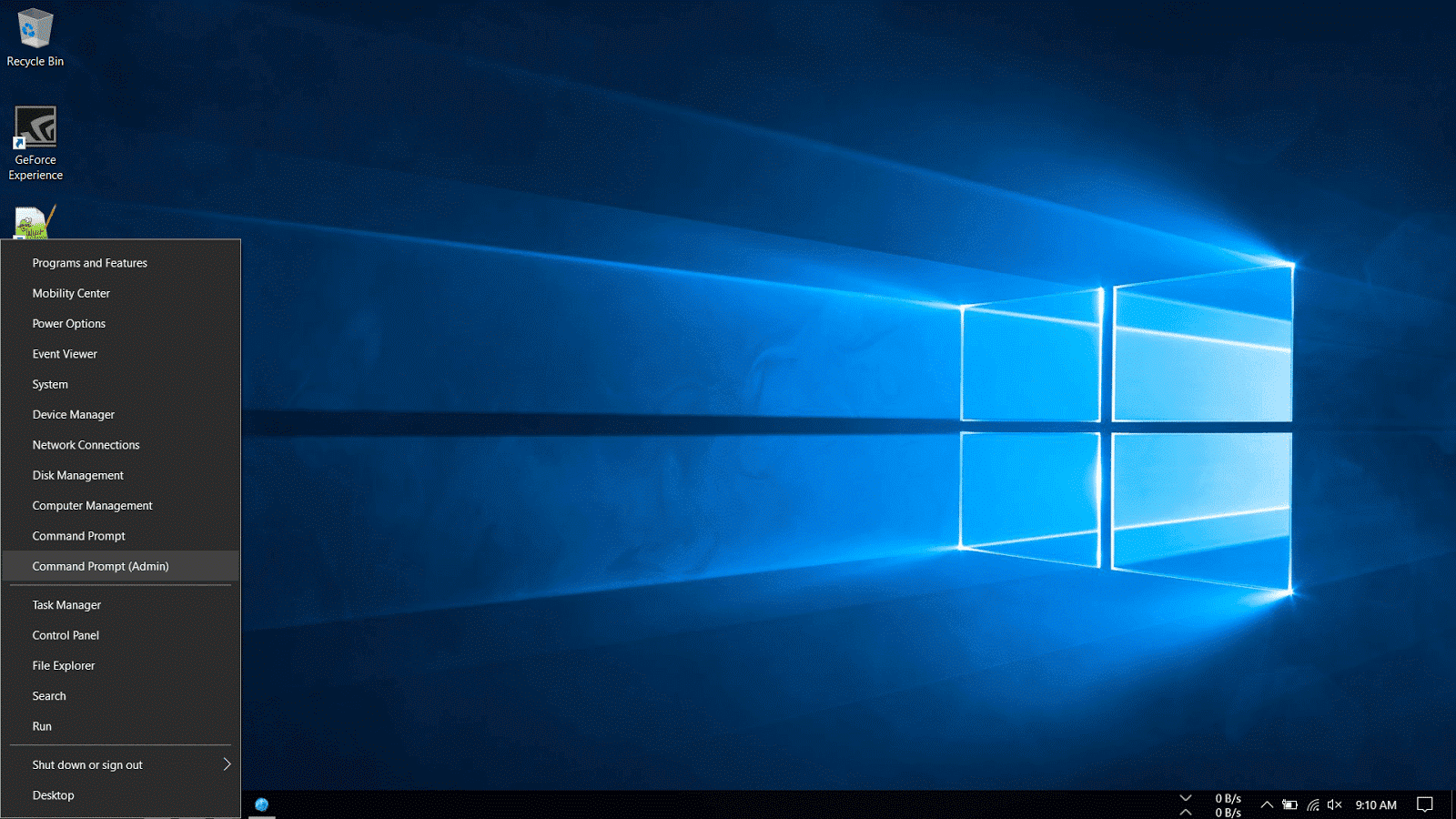
1. Right-Click on the Windows icon on the bottom-left corner of the taskbar and select Command Prompt (Admin).

Install updates on Windows 10

2. Navigate to the folder where the update is downloaded. In my machine, it is located in the Downloads folder.

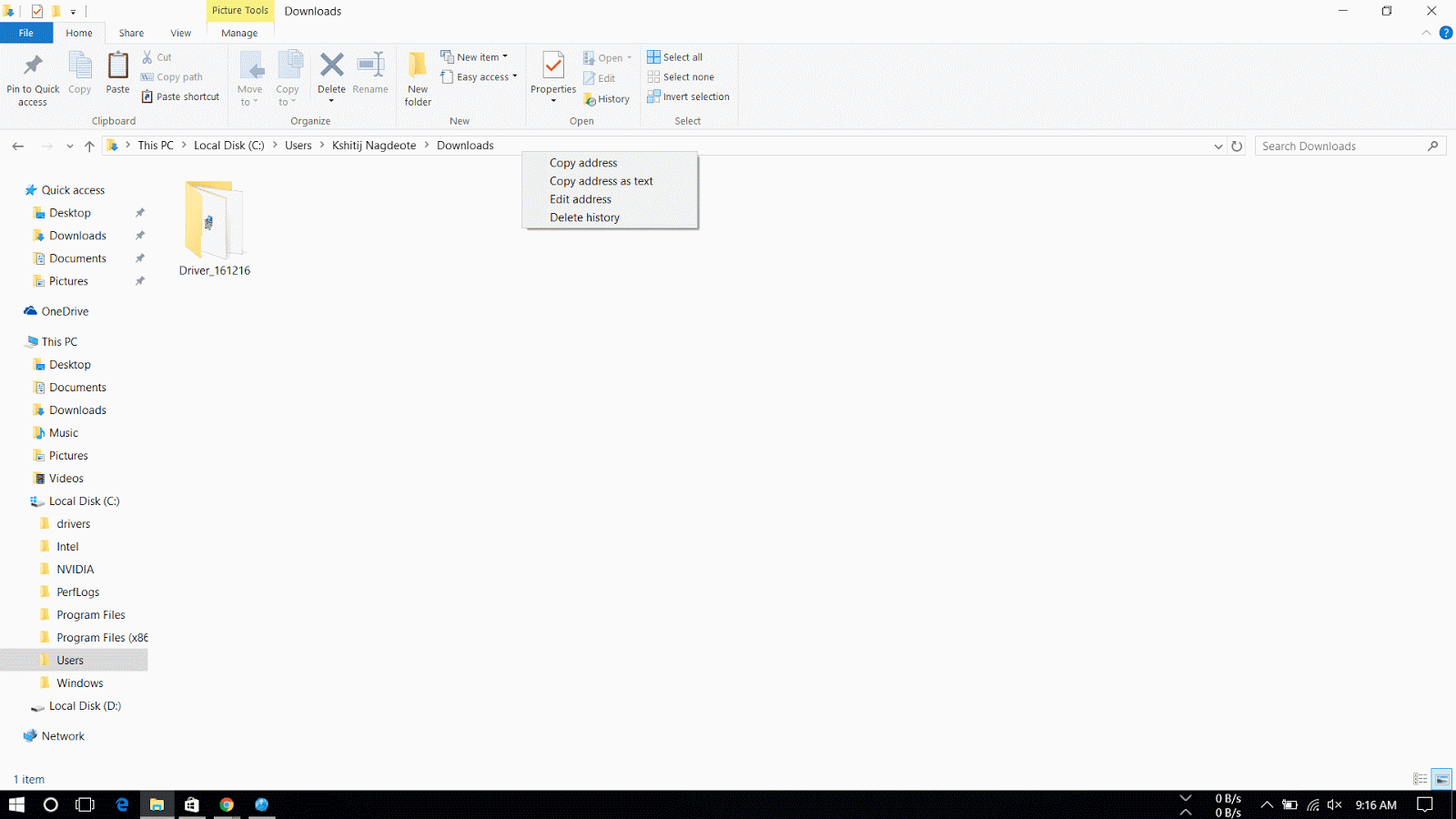
3. Then go to C: drive > Users > USER NAME > Downloads. Right-Click on the address bar and select copy address.  Then in Command Prompt type cd and right-click to automatically copy the address and hit Enter.

copy address of folder in windows 10

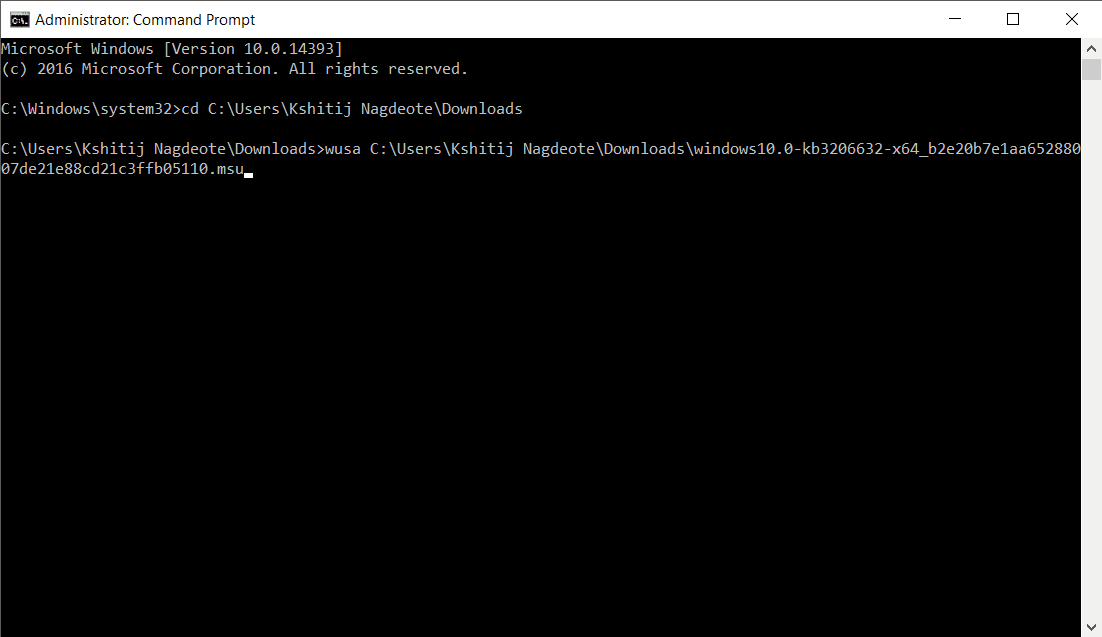
4. Type the following command and press enter.

wusa C:\PATH-OF-DOWNLOADED-UPDATE\NAME-OF-UPDATE.msu /quiet /norestart
manual update windows using command prompt

 Note: We're adding the /quiet /norestart switches to prevent the operating system from restarting the computer after installing the update. But later you have to manually install the update to finish applying it.

Quick Tip: If the name of the update turns to be very long, simply begin typing "Windows10.0-kb" and hit the Tab key to autocomplete the name.

The Microsoft Update Catalog website works best using the Internet Explorer, but recent changes remove the ActiveX requirement allowing users to access the site using Chrome and Microsoft Edge. Along with the cumulative updates, you can download the latest updates for Device Drivers and Surface updates.

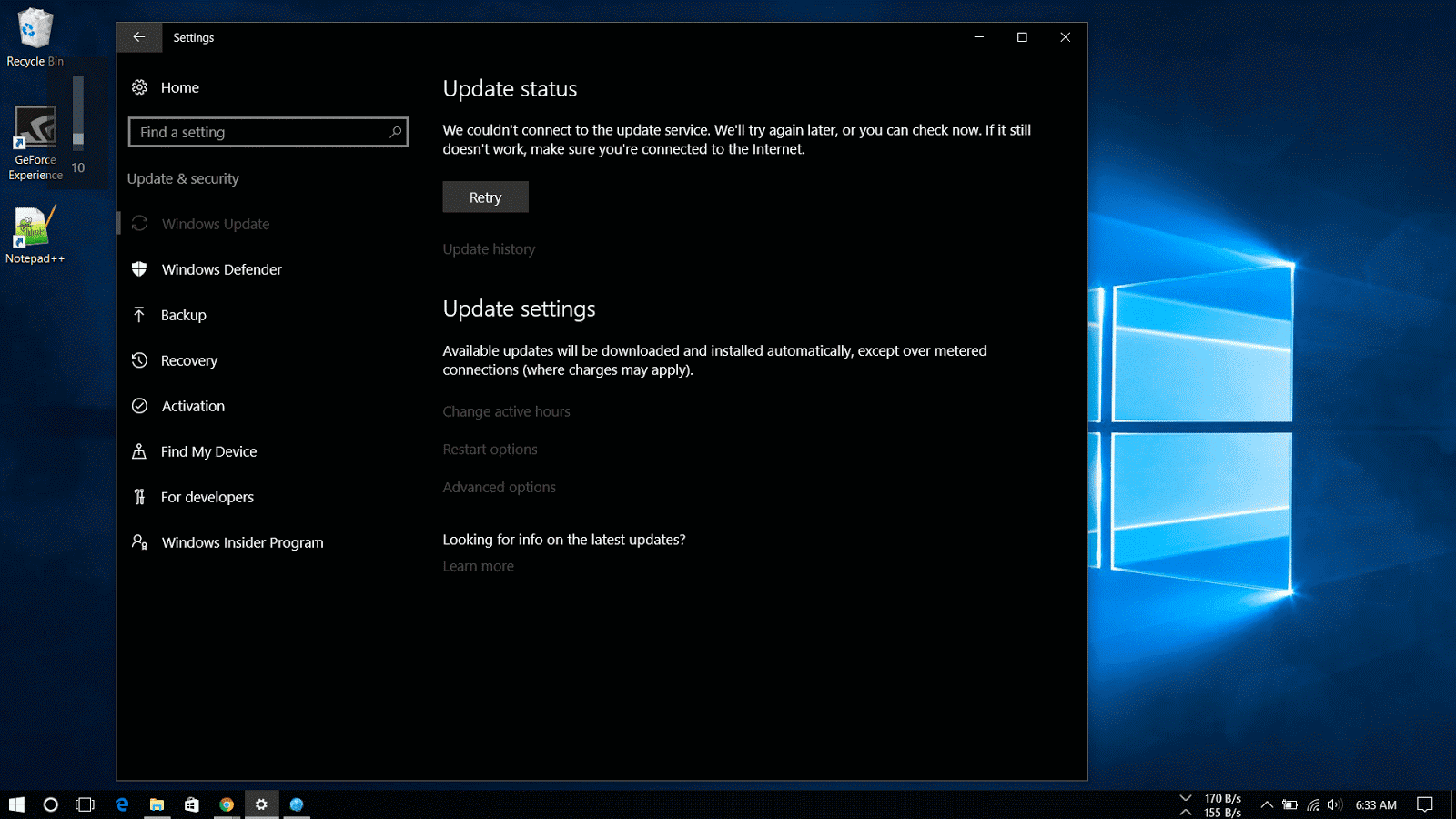
Please do note that sometimes updates won't get through because of a problem in the computer or if the update is incompatible with the system.

The steps shown in this guide applies to download and install updates on previous versions of operating system, including  Windows 8.1 and Windows 7.
Read More
Posted in How To, Windows | No comments
Older Posts Home
Subscribe to: Posts (Atom)

Popular Posts

  • Top 10 Android Launchers You Need To Try in 2017
    Are you bored of same old Home Screen and User Interface on your mobile device? Want to look cool and be functionable and at the same time ?...
  • What is Hosting
    To start a website,registering a Domain name and opting a Hosting service is Important as they will give you space and unique domain name (w...
  • Why College Students Must Blog
    Blogging is getting great exposure all over the world.There are many blogs online that show the reality of money that they earn through blog...

Categories

  • Android
  • Blogging
  • Hosting
  • How To
  • Linux
  • News
  • Product reviews
  • Tech
  • Tips
  • What is
  • Windows

Blog Archive

  • February 2017 (3)
  • January 2017 (2)
  • December 2016 (5)
  • October 2016 (2)
  • September 2016 (1)
  • August 2016 (1)
  • February 2016 (4)
  • January 2016 (4)
Powered by Blogger.

Report Abuse

  • Home

About Me

anuj
View my complete profile

Search This Blog