insynout

  • Subscribe to our RSS feed.
  • Twitter
  • StumbleUpon
  • Reddit
  • Facebook
  • Digg

Wednesday, 25 January 2017

Looking for a perfect IDM Alternative for Windows? EagleGet Downloader Might be just for you

Posted on January 25, 2017 by anuj
Best IDM alternatives for windpws 10, alternatives for idm for windows 10, idm alternatives for mac, idm alternatives for fast download

Well everyone knows that Internet Download Manager (IDM) is an awesome download manager tool. It breaks the files into several chunks of data (File Segmentation) and downloads them into several pieces (Multipart Downloading) to accelerate the downloads.Unlike other download managers and accelerators, Internet Download Manager segments downloaded files dynamically during download process and reuse available connections without additional connect and login stages to achieve best acceleration performance.

Best IDM alternatives for windpws 10, alternatives for idm for windows 10, idm alternatives for mac, idm alternatives for fast download

It supports browser integrations, proxy servers, video and audio codecs, FTP server downloads.Other features include multilingual support, zip preview, download categories, scheduler pro, sounds on different events, HTTPS support, queue processor, HTML help and tutorial, enhanced virus protection on download completion, progressive downloading with quotas (useful for connections that use some kind of fair access policy or FAP like Direcway, Direct PC, Hughes, etc.), built-in download accelerator, and many others.


They also have amazing support center, but you have to buy the software for about ~12 $ for a year's license. So. for the folks who don't want to pay for their service, there's an alternative to it which is free and has almost same features of IDM. EagleGet Download Manager !!!

Best IDM alternatives for windpws 10, alternatives for idm for windows 10, idm alternatives for mac, idm alternatives for fast download

EagleGet is an awesome tool that I personally use to download my files. It has much simpler and direct UI unlike IDM, is stable and supports fast downloading. It doesn't support file segmentation and multipart downloading like IDM does but it has download acceleration and fast downloading.

Its features:  

Best IDM alternatives for windpws 10, alternatives for idm for windows 10, idm alternatives for mac, idm alternatives for fast download

EagleGet has an attractive and modern interface, easy to use and is fully configurable and comes with extra tools such as Media Grabber and speed limiter and the best thing is that it's all for free !! Its tried, tested and recommended by almost all software sites and professionals. 

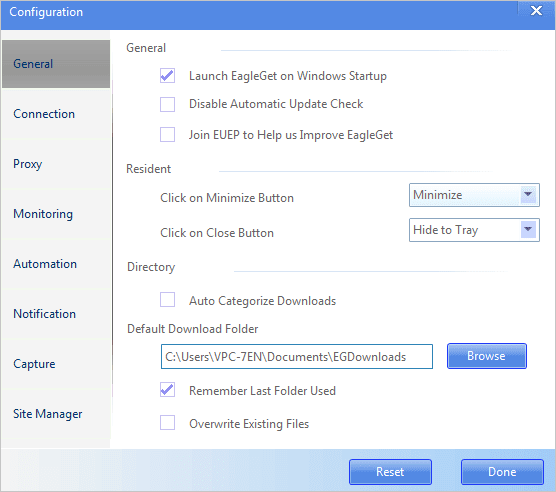
Few Screenshots: 

Best IDM alternatives for windows 10, alternatives for idm for windows 10, idm alternatives for mac, idm alternatives for fast download

Best IDM alternatives for windpws 10, alternatives for idm for windows 10, idm alternatives for mac, idm alternatives for fast download

Best IDM alternatives for windpws 10, alternatives for idm for windows 10, idm alternatives for mac, idm alternatives for fast download

Best IDM alternatives for windpws 10, alternatives for idm for windows 10, idm alternatives for mac, idm alternatives for fast download

Best IDM alternatives for windpws 10, alternatives for idm for windows 10, idm alternatives for mac, idm alternatives for fast download

Best IDM alternatives for windpws 10, alternatives for idm for windows 10, idm alternatives for mac, idm alternatives for fast download

Best IDM alternatives for windows 10, alternatives for idm for windows 10, idm alternatives for mac, idm alternatives for fast download

Best IDM alternatives for windpws 10, alternatives for idm for windows 10, idm alternatives for mac, idm alternatives for fast download

Best IDM alternatives for windpws 10, alternatives for idm for windows 10, idm alternatives for mac, idm alternatives for fast download

Download EagleGet for free (direct link): here

For portable version click here

Visit the website and please do check out the awesome download manager.

Hope you find this article useful. For more such articles, more suggestions and any kind of help, comment down below.
Read More
Posted in Windows | No comments

Monday, 23 January 2017

Secret: How to download large files from Google Drive the right way

Posted on January 23, 2017 by anuj
  How to download files above 2gb from google drive

Google Drive is an awesome tool for saving files online. It offers 15 GB storage for a standard free account. If you want more space, then upgrade to their premium plans which are cheaper and are at reasonable prices.

You can easily download files of less size...about 2GB from google drive using the Google Drive's desktop app and direct download, but beyond that, it will struggle to download files. I tried to download all my pics from my backup which were about 2.5 GB, compressed them and they were failing each and every time while downloading.

In this article, I'll share a few tricks on how to download large size files from Google Drive without any issues. You can also download files with the help of download managers with this simple trick.

# Method 1:

If you're like me who thinks that Command line interface is cool and awesome, follow this method. It's a pretty easy method and anyone can follow it.

The below method is for downloading all types of files whether they are privately owned or shared. We authenticate the file from drive to grant access to our IP and maintain the connection and ensure that the download speeds remain constant.

Here are step-by-step instructions to download a file from Google Drive using the command line API if the file is shared privately and needs authentication.

Get the file ID:

        1. Go to your Google Drive in your browser.
Download large files from google drive using terminal, Above 2GB, files download
        2. Right-click (or control-click) the file you want to download and click “Get shareable link”. The link looks like this: https://drive.google.com/open?id=XXXXX. Make note of the file ID “XXXXX”; you will be needing it below.
Download large files from google drive using terminal, link Sharing, 2GB download limit
Download large files from google drive using terminal,Easliy, 2gb lmit

Get an OAuth token:

        1. Go to OAuth 2.0 Playground.
Download large files from google drive using terminal, OAuth Token
        2. In the “Select the Scope” box, scroll down, expand “Drive API v3”, and select "https://www.googleapis.com/auth/drive.readonly"
Download large files from google drive using terminal, google api,oauth
        3. Click “Authorize APIs” and then “Exchange authorization code for tokens”. Copy the “Access token”; you will be needing it below.
Download large files from google drive using terminal, using IDM,browser,

Download large files from google drive using terminal, and browser,Access token

Download the file from the command line:

If using OS X or Linux, open the “Terminal” program and enter the following command. It also works on Bash on Ubuntu on Windows 10 64-bit if you've enabled in your settings.

  1. curl -H "Authorization: Bearer YYYYY" https://www.googleapis.com/drive/v3/files/XXXXX?alt=media -o ZZZZZ


Download large files from google drive using terminal
Download large files from google drive using terminal,
If using Windows, open the “PowerShell” program and enter the following command. (Note: I haven’t tested this)

  1. Invoke-RestMethod -Uri https://www.googleapis.com/drive/v3/files/XXXXX?alt=media -Method Get -Headers @{"Authorization"="Bearer YYYYY"} | Out-File ZZZZZ


In your command, replace “XXXXX” with the file ID from above, “YYYYY” with the access token from above, and “ZZZZZ” with the file name that will be saved (for example, “myFile.mp4” if you’re downloading a mp4 file).
Press Enter and let the download begin.

# Method 2:

Method 2 is damn easy. Follow the steps below:

1. Open a browser window and copy the link of the file that you want to download.

2. Now open an Incognito window or any other browser but make sure that you are not signed in into your google account in that tab or browser.

3. Hit download. The browser starts to download the file, but if you want to use a download manager then, cancel it and paste it any download manager URL list that you prefer to.

4. That's it. :D  

Hope you like the article. Please share it and comment down below if facing any issue.
Read More
Posted in How To | No comments

Saturday, 31 December 2016

How to Manually Download and Install Windows 10 Updates

Posted on December 31, 2016 by anuj

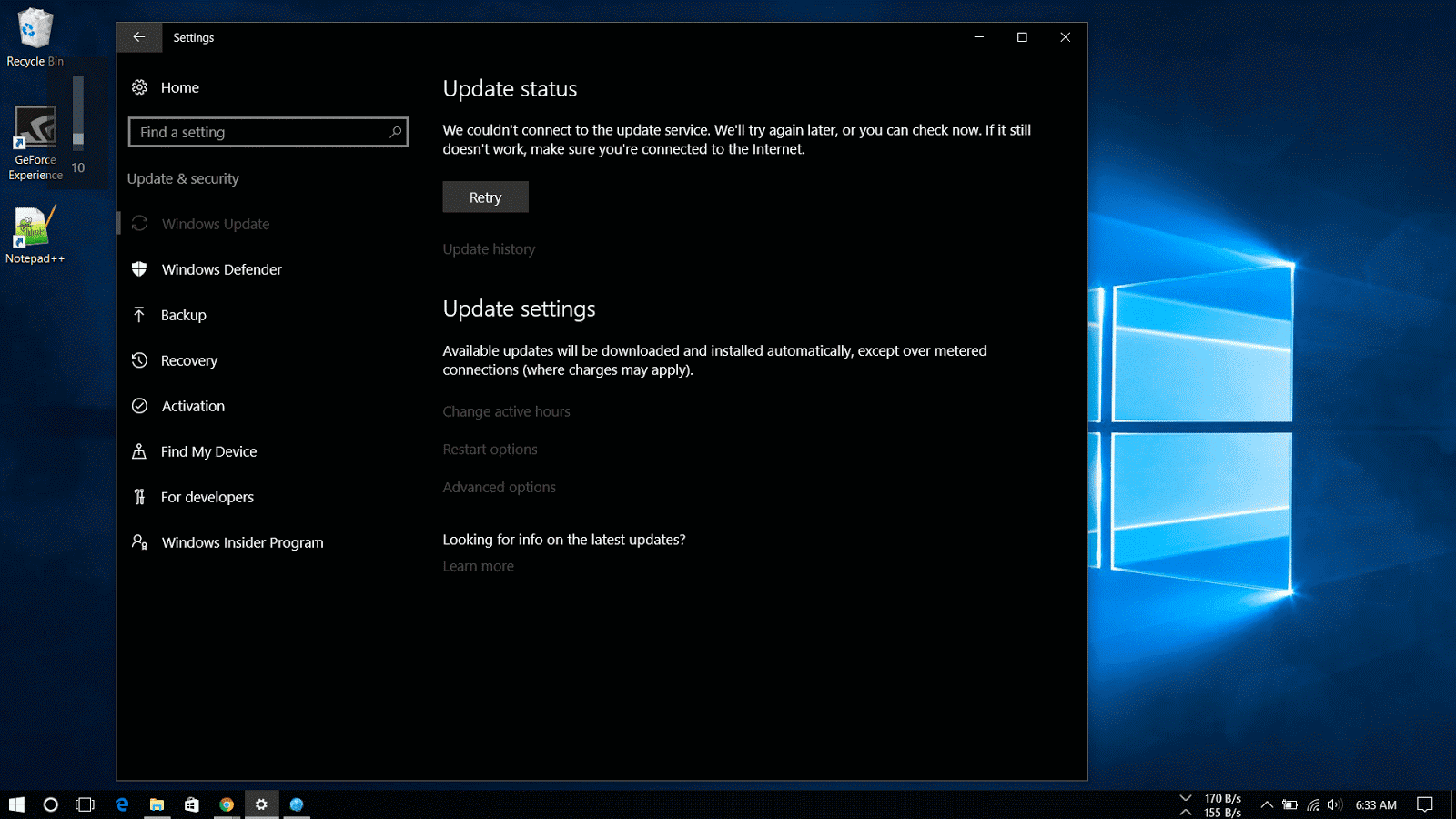
Cannot install Windows 10 update

When a new windows update doesn’t show up or whether you have a limited internet connection or you prefer to take the responsibility of taking care of your Windows machine and want to manually update..well you've come to the right place.

The article focuses on how to install Windows updates manually.

Microsoft makes available updates for Windows 10 on the regular basis to patch any system software error, to patch a security hole or to improve the functionality of the operating system.

These updates are rolled out to protect users from online phishing attacks, prevent loss of data from a system crash and to add new definitions and functionality improvements. Even now that updates are mandatory to keep the Windows devices up to date, sometimes updates may not appear for download on the computer for a long period of time for many reasons.

update windows manually

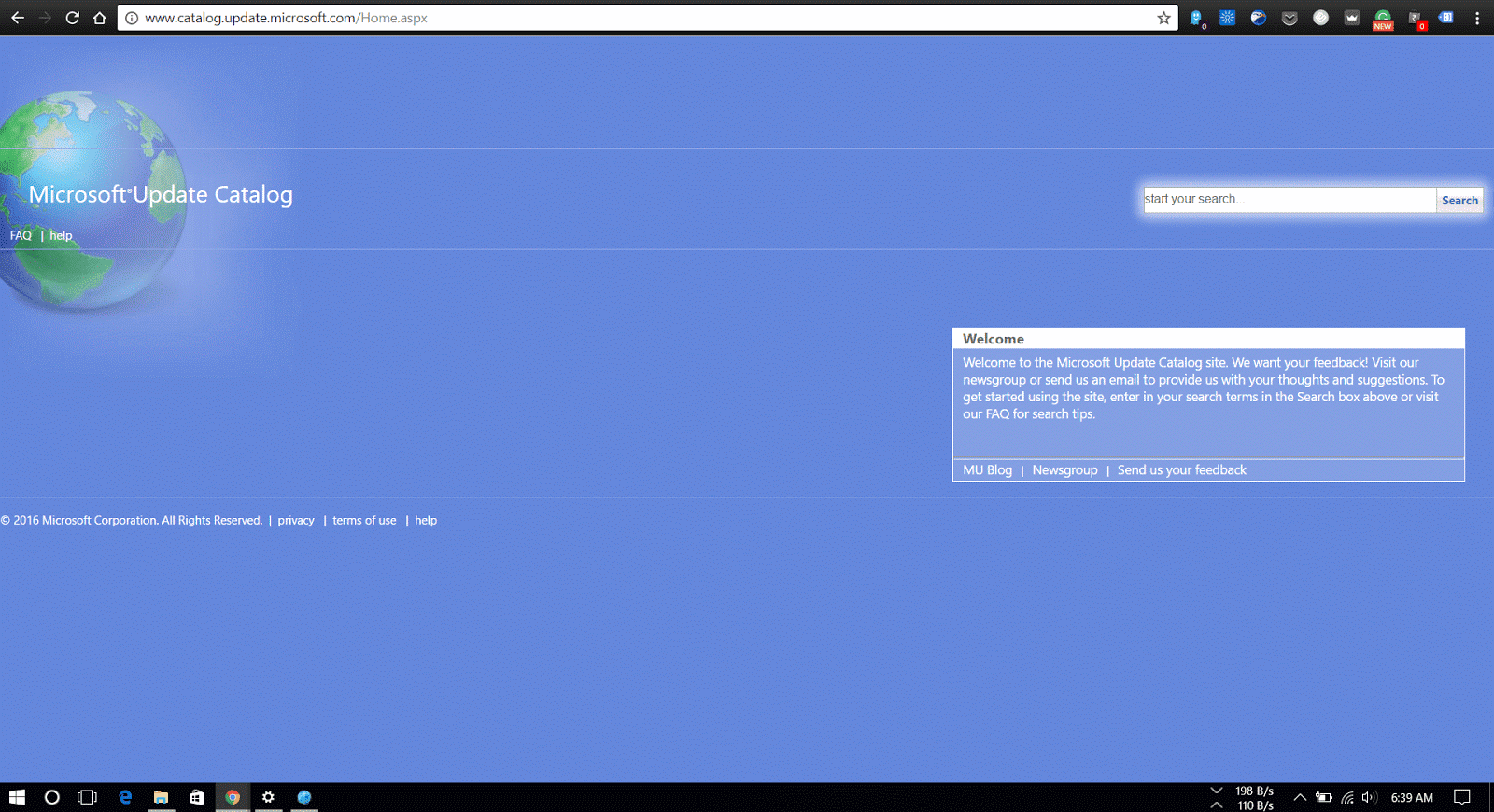
Windows Update is the preferred method to get updates from Microsoft, users can also manually download the updates as they are available through the “Microsoft Update Catalog” website.

This website mainly serves as a resource for IT administrators who need to test updates before pushing them to the devices in the network, you can use the Update Catalog website to quickly download a new update if it’s not showing for you in Windows Update as an alternative option.

How to download cumulative updates


Note that the Microsoft Catalog Website doesn’t list anything, instead it’s a search page where the user must know exactly which page to download and on which type of system the update is to be installed.

What is KB number

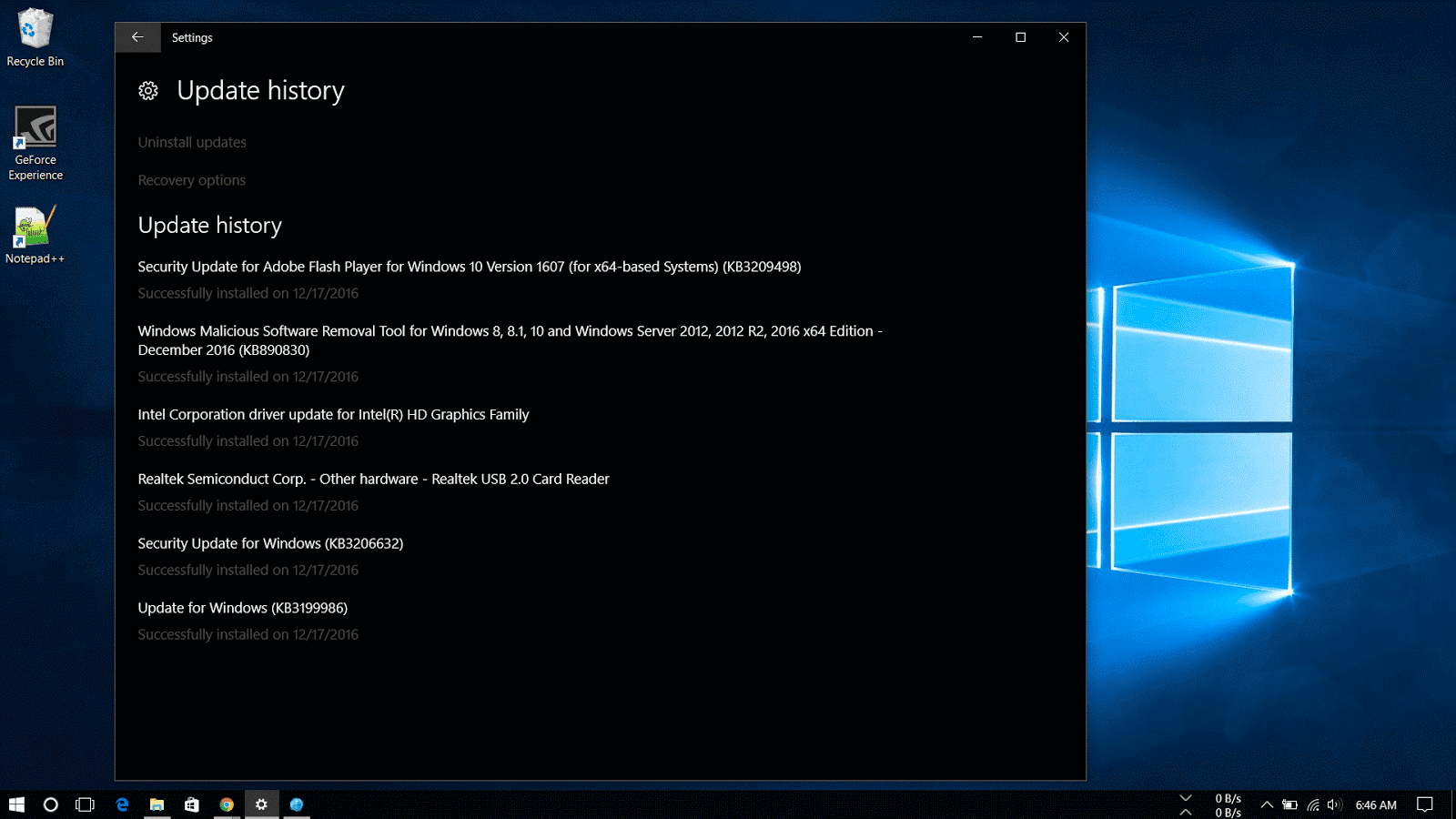
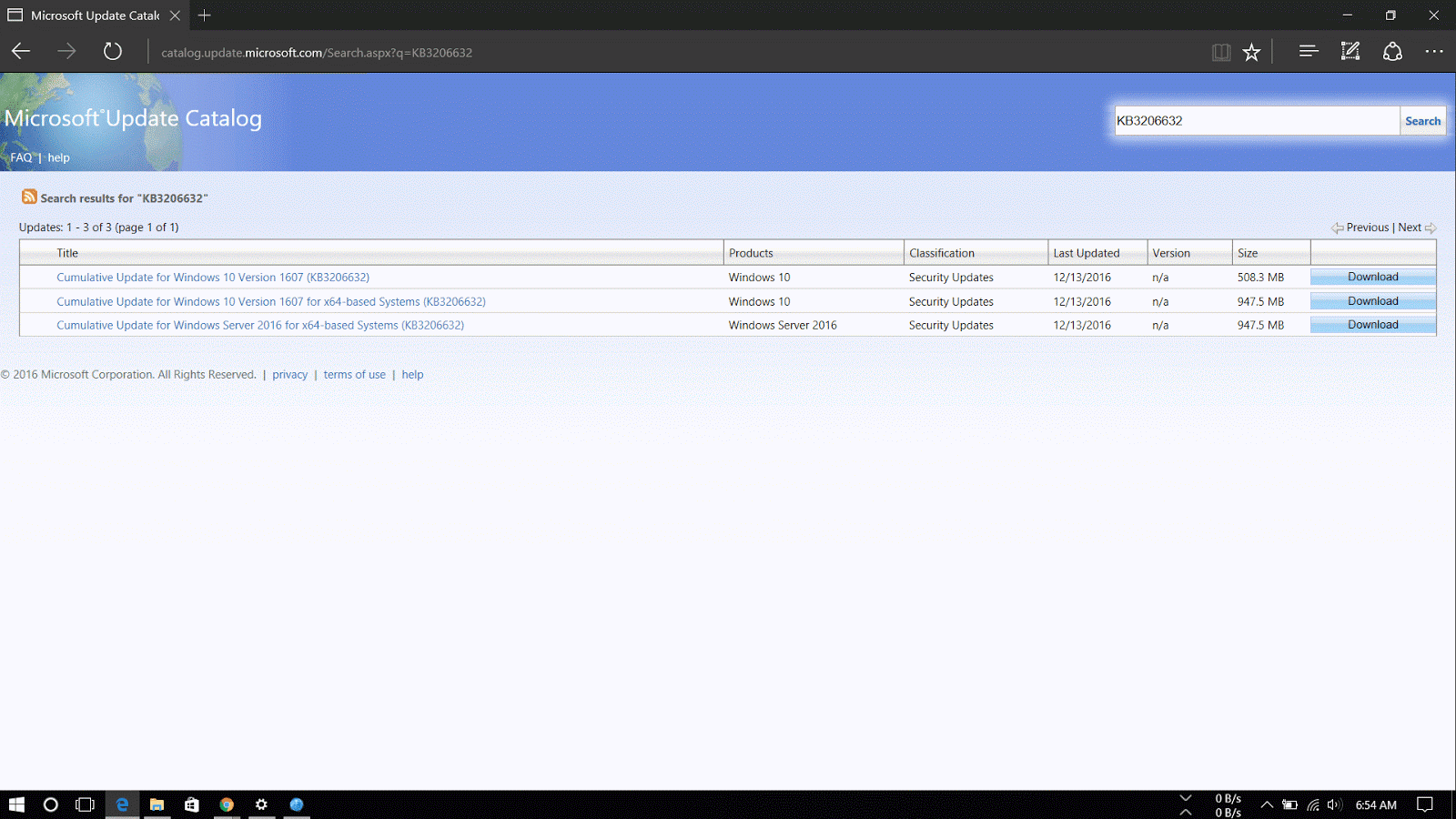
The easiest way to find an update is to know it’s Knowledge Base reference number. (The KBxxxxxx number which you might see when you’re installing updates in the Windows Update). For example, on December 13th, Microsoft released Windows 10 build 14393.576, which Knowledge Base reference was KB3206632. You can find references on the Windows 10 Update History Website.

Then do the following steps:

1. Visit the Microsoft Update Catalog website

2. Do a search for the update using the KB number for the update you want. For example, KB3206632.                    

kb number

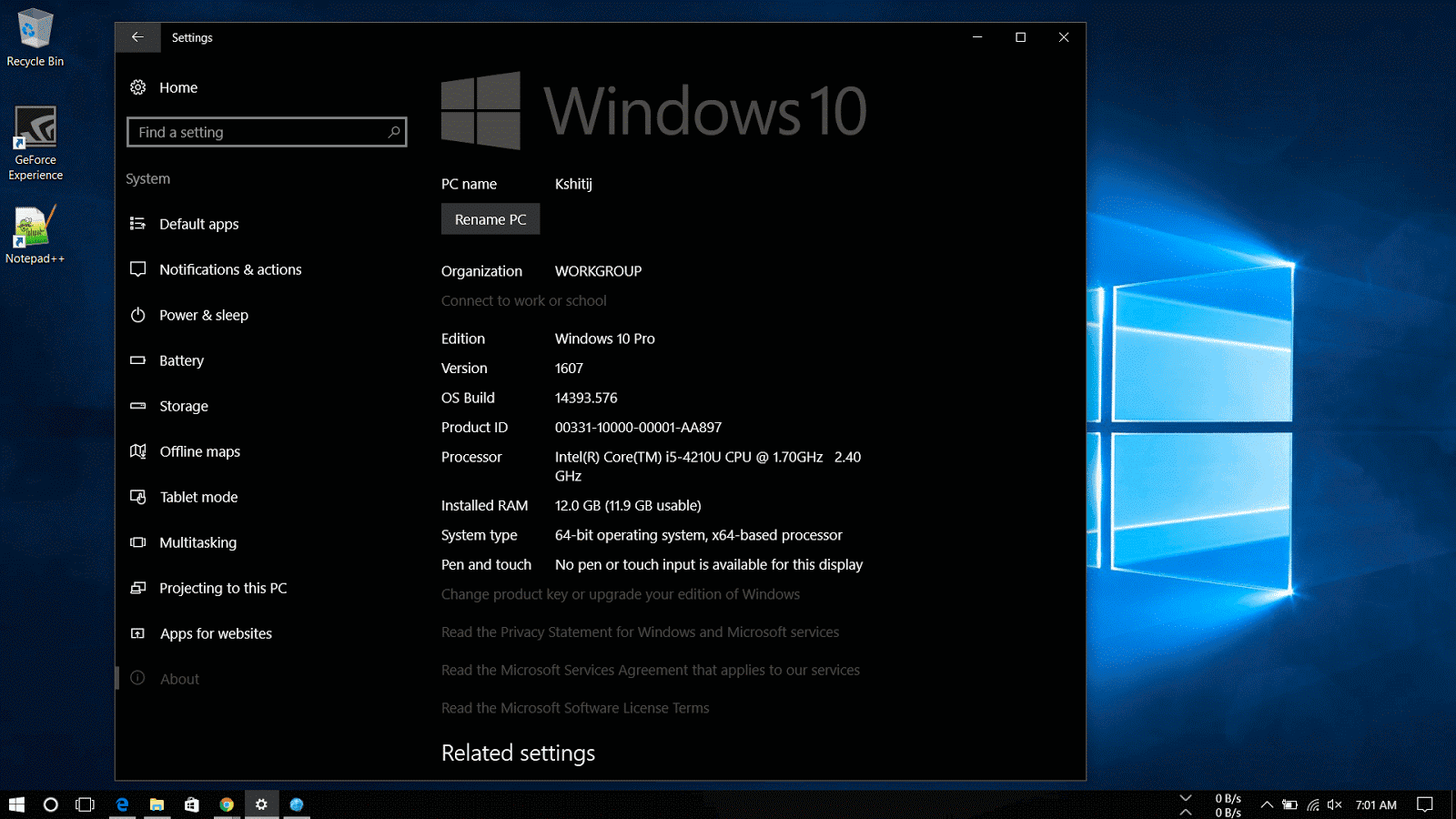
3. Now download the 32-bit or 64-bit version of the update. If you are unaware of the system type, go through the following steps:

       1. Open Settings.

      2.Click on System.

      3.Click on About.

       4.See the System type.

32-bit or 64-bit windows 10

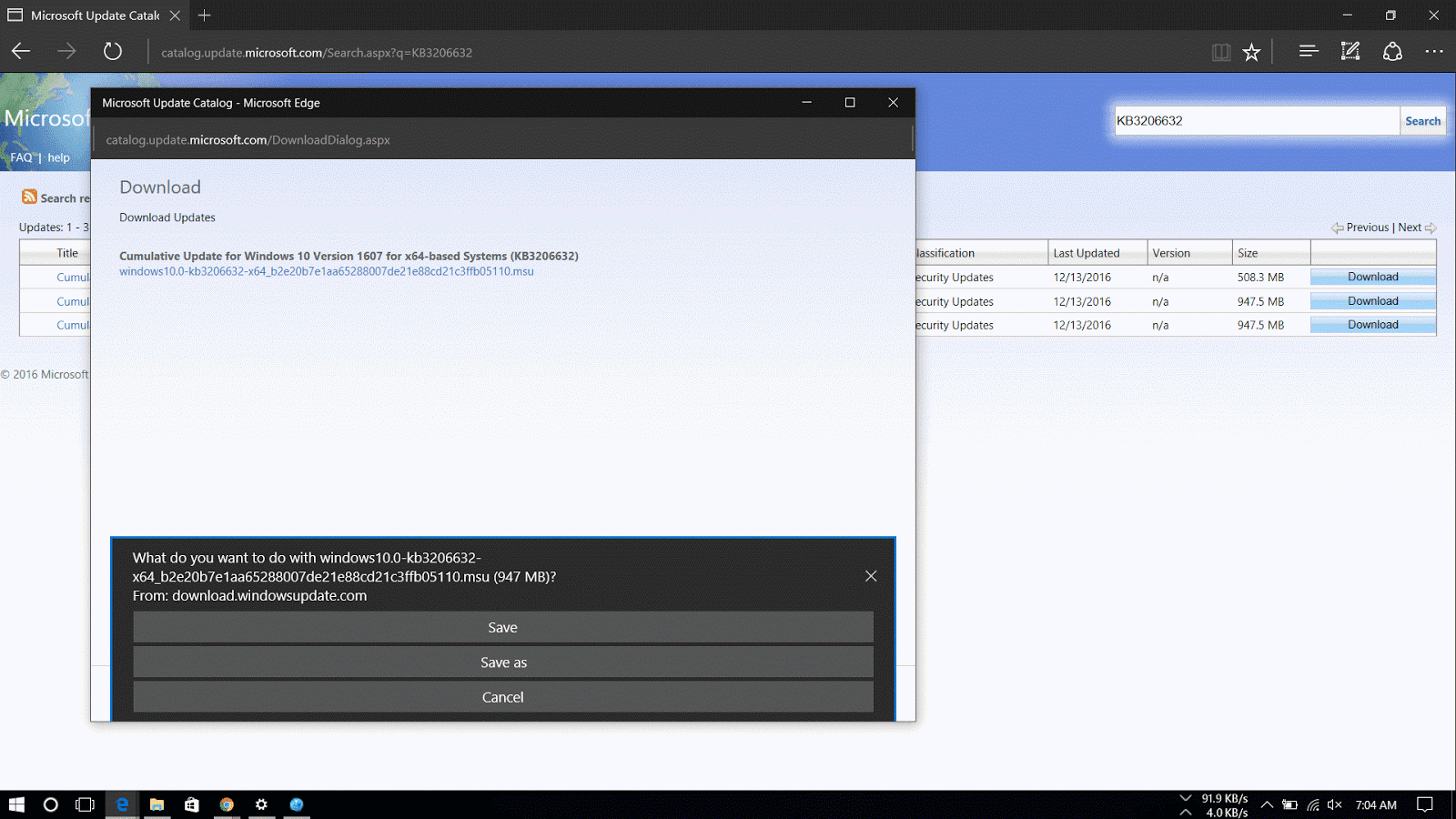
4. A new window will appear with a direct download link, click on it to download the .msu file.

Manually download windows 10 updates

Now that you've downloaded the file, for steps on how to install the updates manually read my article here.
Read More
Posted in How To, Windows | No comments

Monday, 19 December 2016

How To Install Cumulative Updates of Windows 10 Manually

Posted on December 19, 2016 by anuj
If you have downloaded the Microsoft Update Manually, follow the steps below to install or follow this guide on how to download the updates manually.

You can simply double-click the update .msu file to install an update on Windows 10 and restart to finish update or you may prefer to manually include options such as not to restart after installing the update, which can be done by using the command prompt.

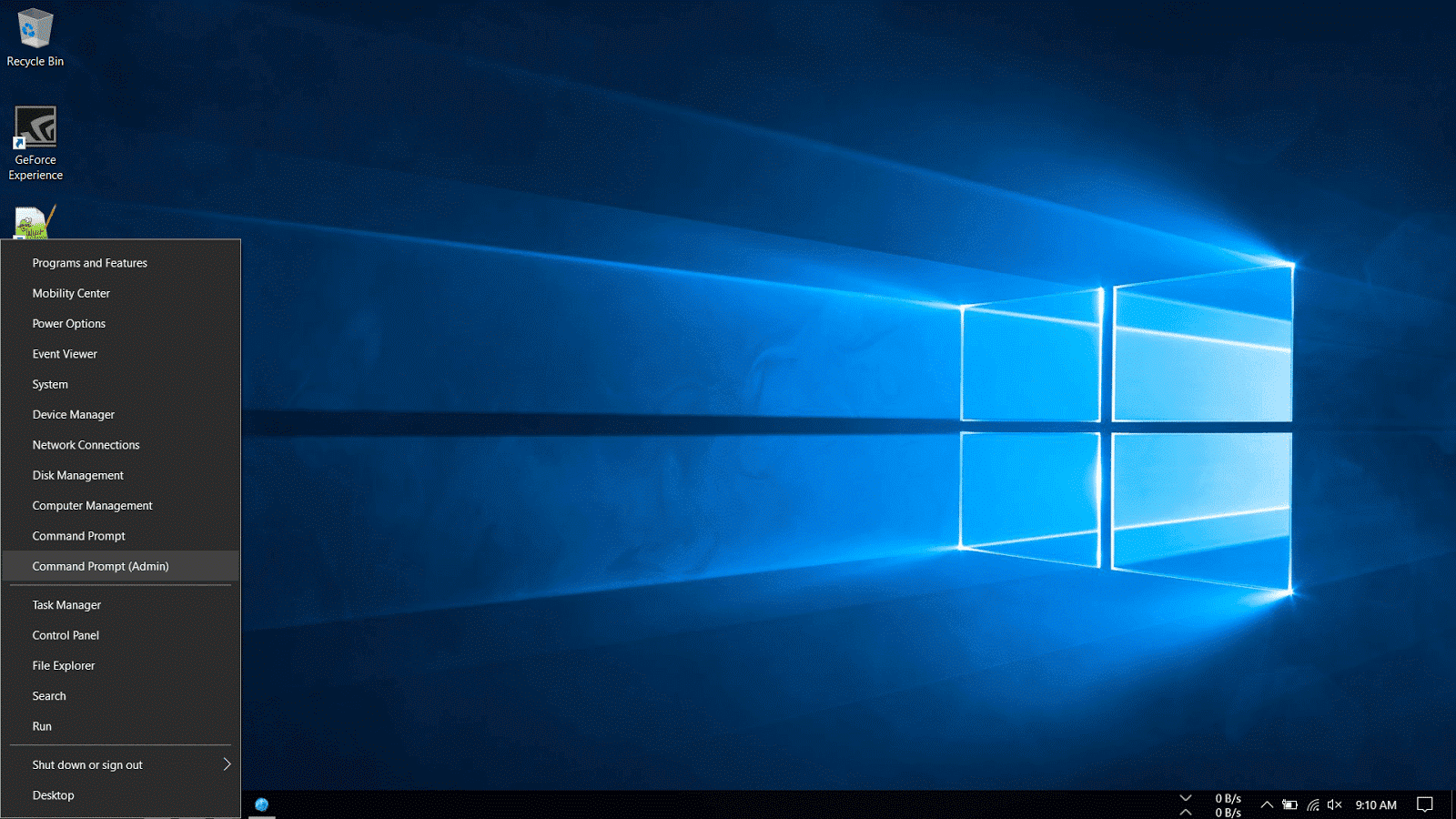
1. Right-Click on the Windows icon on the bottom-left corner of the taskbar and select Command Prompt (Admin).

Install updates on Windows 10

2. Navigate to the folder where the update is downloaded. In my machine, it is located in the Downloads folder.

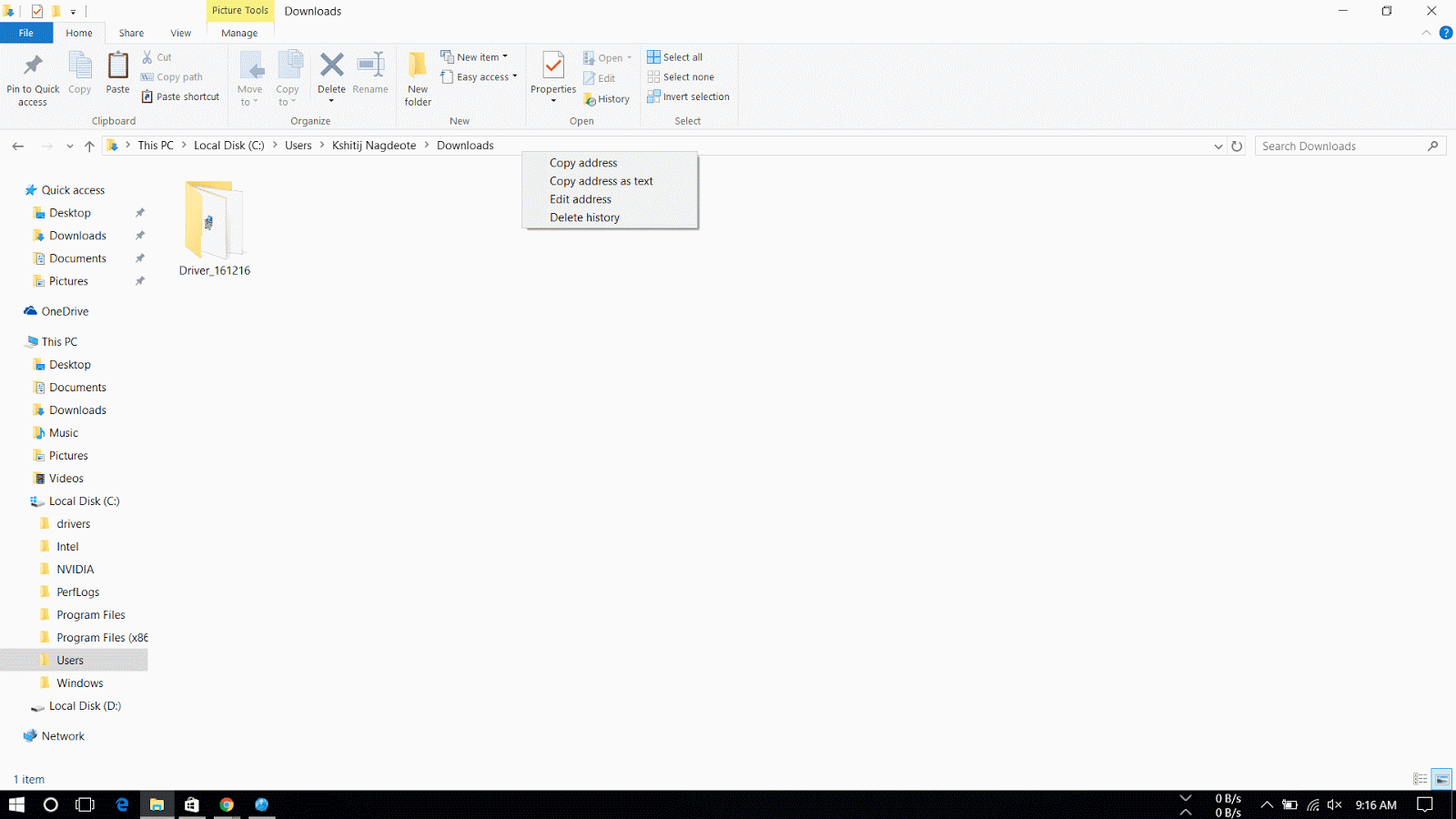
3. Then go to C: drive > Users > USER NAME > Downloads. Right-Click on the address bar and select copy address.  Then in Command Prompt type cd and right-click to automatically copy the address and hit Enter.

copy address of folder in windows 10

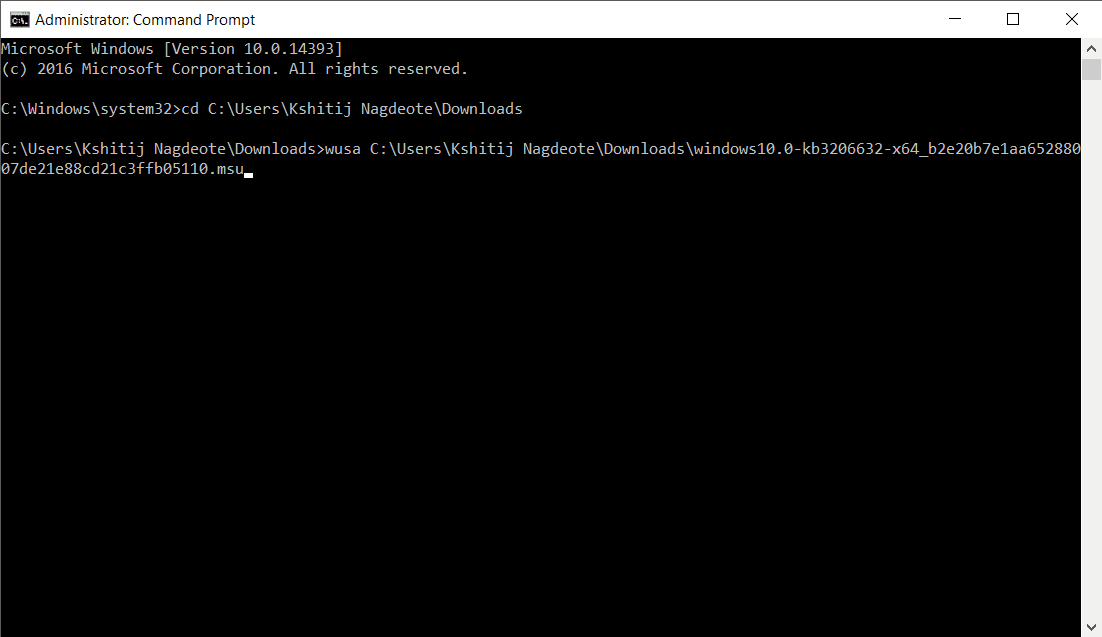
4. Type the following command and press enter.

wusa C:\PATH-OF-DOWNLOADED-UPDATE\NAME-OF-UPDATE.msu /quiet /norestart
manual update windows using command prompt

 Note: We're adding the /quiet /norestart switches to prevent the operating system from restarting the computer after installing the update. But later you have to manually install the update to finish applying it.

Quick Tip: If the name of the update turns to be very long, simply begin typing "Windows10.0-kb" and hit the Tab key to autocomplete the name.

The Microsoft Update Catalog website works best using the Internet Explorer, but recent changes remove the ActiveX requirement allowing users to access the site using Chrome and Microsoft Edge. Along with the cumulative updates, you can download the latest updates for Device Drivers and Surface updates.

Please do note that sometimes updates won't get through because of a problem in the computer or if the update is incompatible with the system.

The steps shown in this guide applies to download and install updates on previous versions of operating system, including  Windows 8.1 and Windows 7.
Read More
Posted in How To, Windows | No comments

Saturday, 17 December 2016

How to Vanish from the Internet completely

Posted on December 17, 2016 by anuj
Delete from internet completely

Social Media has made everyone's life an open book on the Internet. (In some cases a bit too far open) In today's digital age, Internet companies and markets are constantly tracking users data for relative targeting and data mining. As more and more individuals and businesses rely on the Internet as the primary source of information about others, compromising the data of the other person grows.

Social Media Suicide

People who are concerned about their personal information online, potentially costing them jobs and other problems or for someone who wants to delete every information about self on the internet or for someone who is facing the harsh realities of social media fallout, the decision of pulling the plug might seem an attractive idea. And while it might seem difficult to maintain a distance between personal and private life in the 24x7 world, truth is that you can disappear online entirely by little effort and dedication. Also, you can entirely create a new identity for yourself.

The first step to keeping a low profile is to wipe out Social media existence. To delete your accounts just head on to websites such as JustDelete.me and Deseat.me. These websites help to clean out your existence from the internet.

deseat me interface

How does it work?  Well, for instance, Deseat.me asks permissions to your Gmail account, then it finds accounts connected to the email id ever created and provides a detailed list to deactivate the accounts.

delete from facebook, twitter


Using the tools, either you can create an entirely new identity for yourself or totally vanish from the online social world.

just delete me

If you totally want to delete every trace of yours from the Internet, follow this guide by ProphetHacker, which contains nine steps to wipe out your existence from the Internet.

Hope You like the article please subscribe or follow on social media to receive updates.
Read More
Posted in Tips | No comments

Thursday, 8 December 2016

WhatsApp Update : List of Smartphones that will not be supported in 2017

Posted on December 08, 2016 by anuj
WhatsApp Messenger

As we all know, WhatsApp is a popular messenger for smartphones. It runs on many platforms such as Android, Blackberry OS, Symbian and iOS to name a few.
But earlier this year, WhatsApp announced the discontinuation of its services for older smartphones by the end of 2016.

In a technology upgrade, WhatsApp announced that it will discontinue the development of older smartphones and focus on the platforms that people use widely.

“While these mobile devices have been an important part of our story, they do not offer the kind of capabilities we need to expand our app’s features in the future,” said a WhatsApp spokesperson.

The mobile platforms and their versions which would not be supported by WhatsApp in 2017 are :
  
– Android : Android 2.1 and Android 2.2
– Windows : Windows Phone 7
– iPhone: 3GS/ iOS 6

whatsapp messenger


However, app support will be extended for the following devices until June 2017 :

-Blackberry 10 running BBOS
-Nokia S40 running on Symbian S40
-Nokia Devices running on Symbian S60

A majority of the Android devices are supported. But iPhones running on iOS 6 and earlier will not be able to use the services of the app anymore.
Read More
Posted in News | No comments

Wednesday, 7 December 2016

SKEYE Nano 2 is the world’s smallest drone which fits in your hand

Posted on December 07, 2016 by anuj
Skeye Nano

Drones and Internet Of Things ( IOT ) are two sectors of technology which are taking off with much new technology and addition of products in the Industry. Drones are nowadays used in pretty much everything from delivering pizzas,video shooting,military surveillance to taking selfies. These unmanned aerial vehicles are taking the world by storm. Drones vary in shapes,sizes,dimensions and features.

Now there are drones which are larger in size and have best features and there are also drones which claim to be the smallest. Among the titles of the smallest drone, have you come across one which has a camera and packs a punch ?

Nano Drones

SKEYE drones, from TRNDlabs, are the current holders of making the world’s smallest drone series ( SKEYE Nano ), have added another great product to their line. SKEYE Nano 2 is arguably the world’s smallest flying camera drone at just 1.6 inches wide.

Measuring just 1.6 inches (4 centimeters) on sides and 0.9 inches in height, the 17-gram (0.59 ounce) awesome drone is capable of doing acrobatic stunts, has a Live Wi-Fi connectivity,SD Camera, LED lights for night flying and comes with Throw to fly and Ready to fly technology.
Drone Joystick

SKEYE Nano 2 is so easy and fun to operate that any person without any experience, can handle it. The controller has adjustable gyro sensitivity and can be set to beginner, mid-level, and expert for the ultimate precision control.It also has 6-axle flight control system.The Drone sits in the compact casing in the joystick.

Phone joystick holder

SKEYE Nano 2 FPV Is equipped with Wi-Fi So that it can be alternatively controlled via the App on Android and iOS. Pairing with the onboard camera, the app gives a First Person View (FPV) of exactly what the drone sees. It’s not just a drone, It’s a portable flying camera !

Drone Selfie

The Drone is easy to use, Ultra- Compact and the app give you a whole lot of functionality,features and full control over the device. It’s a great product, a best buy, and ships anywhere in the world for free. The drone’s cost starts from 2,500 INR (~37 USD). You can buy one here and the Nano 2 here


Read More
Posted in News | No comments
Newer Posts Older Posts Home
Subscribe to: Posts (Atom)

Popular Posts

  • Top 10 Android Launchers You Need To Try in 2017
    Are you bored of same old Home Screen and User Interface on your mobile device? Want to look cool and be functionable and at the same time ?...
  • What is Hosting
    To start a website,registering a Domain name and opting a Hosting service is Important as they will give you space and unique domain name (w...
  • Why College Students Must Blog
    Blogging is getting great exposure all over the world.There are many blogs online that show the reality of money that they earn through blog...

Categories

  • Android
  • Blogging
  • Hosting
  • How To
  • Linux
  • News
  • Product reviews
  • Tech
  • Tips
  • What is
  • Windows

Blog Archive

  • February 2017 (3)
  • January 2017 (2)
  • December 2016 (5)
  • October 2016 (2)
  • September 2016 (1)
  • August 2016 (1)
  • February 2016 (4)
  • January 2016 (4)
Powered by Blogger.

Report Abuse

  • Home

About Me

anuj
View my complete profile

Search This Blog